Adding Alt Text to IT Construction Media Library
Adding Alt Text to IT Construction Media Library
Objective
This SOP outlines the steps to add alt text to images in the IT construction media library to improve accessibility and SEO.
Key Steps
1. Sign In to the Media Library 0:11
Access the media library by signing in with your provided login credentials.
Ensure you have the necessary permissions to edit the media.
2. Navigate to the Media Library 0:23
Once signed in, locate and click on the 'Media' section.
Select 'Library' to view all available photos.
3. Identify Images Needing Alt Text 0:36
Review the images in the library.
Look for images that do not have alt text (these will appear blank).
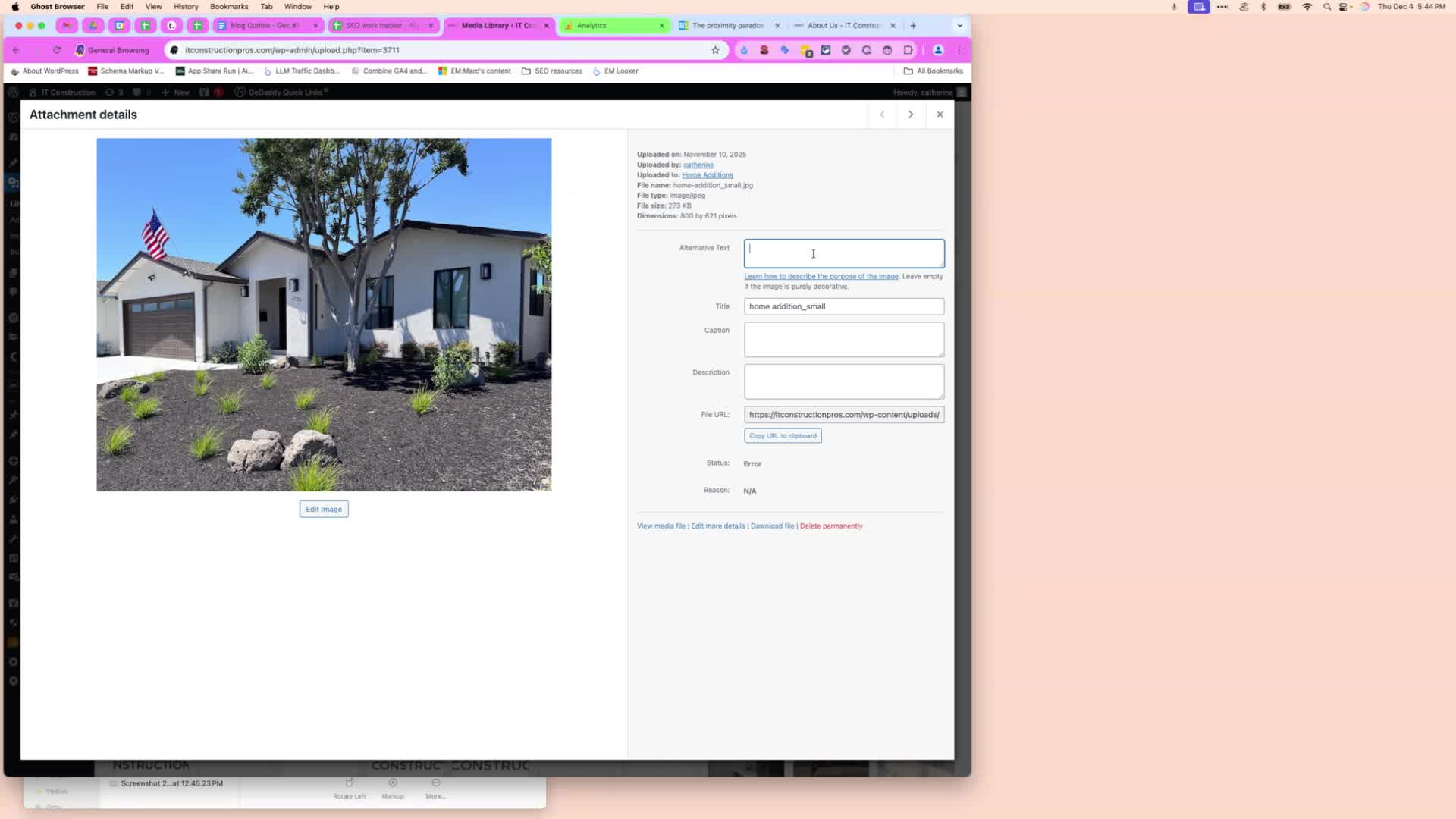
4. Add Alt Text to Images 0:46
For each image, click to edit and add descriptive alt text.
Use relevant keywords such as 'home renovation project in San Jose' or specific services offered.
5. Use Key Service Words 1:04
Refer to the main services provided by the company for keyword ideas:
ADU (Accessory Dwelling Unit)
Home additions
Bathroom remodeling
Kitchen remodeling
Electrical services
Incorporate these keywords into the alt text where applicable.
6. Review and Save Changes 1:25
After adding alt text, review each entry for accuracy.
Save your changes before exiting the media library.
Cautionary Notes
Ensure that the alt text is descriptive but concise; avoid keyword stuffing.
Do not add alt text to icons unless they convey important information.
Tips for Efficiency
Use a consistent format for alt text to maintain uniformity across images.
Consider creating a template for alt text based on common services to streamline the process.
